
Connect named pins on the draggable wiring canvas
Drag, magnetically snap, reconnect and diagnose real electrical pin connections.
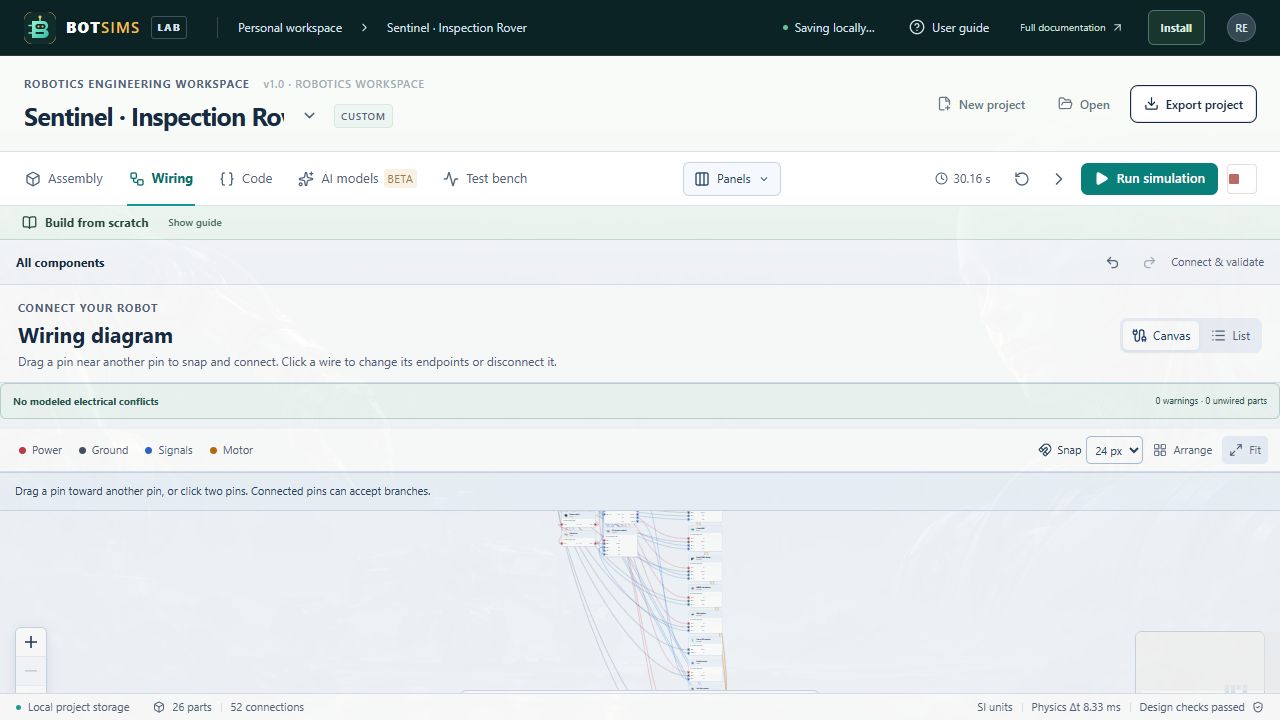
- Open Wiring. Every electrical component in the project has a card with named pins. Card banks put inputs/ground/buses on the left and outputs on the right. Drag card headers to arrange them; use Arrange or Fit to navigate.
- Drag any pin toward another pin, from either direction. Snap defaults to a 24-screen-pixel magnetic reach, with Off, 12, 24 and 40 px choices. The reach stays consistent as you zoom. Release near a highlighted target to create a logical wire.
- Blue targets have a suggested role match, amber targets need review, and red targets have a known role conflict. Role colors are advice, not circuit certification. Electrically wrong connections can still be created so diagnostics can explain their consequences. Same-pin and duplicate wires are rejected.
- Click a wire to select it. Drag its larger endpoint circle to a different pin, or use First pin / Second pin and then click a destination. Edit pins provides exact selectors. A successful reconnect keeps the original wire ID; one Undo restores its old endpoints.
- A cancelled or invalid drop preserves the old connection. Escape, Cancel, leaving the window or changing editors cancels an unfinished gesture. Click two pins, or focus pins and use Enter/Space, to connect without dragging. Connected pins can accept additional branches.
Adding a component with electrical pins automatically creates its wiring card, including generic layout-only electrical parts. Missing supply/ground paths and unwired cards are visible. Expand the live check bar for diagnostics; it refreshes after every connection, disconnection and model swap. Red connections/diagnostics flag modeled conflicts; a clean check is limited to the supported rules, not a datasheet or SPICE certification.
Open Wiring and choose Canvas. Each electrical component is a draggable card with its real named pins. The diagram is an editor for the same logical wires used by validation and simulation. Moving a card changes only its saved diagram position; it does not move the physical part in 3D.
- Drag a component card by its header to arrange the circuit. Choose Arrange for an automatic layout of the visible cards.
- Drag from the small colored pin circle on one card to a pin on another. Release on the target circle to create the connection. A click on one handle followed by another is also supported.
- Use the mouse wheel or trackpad and canvas controls to pan and zoom. Choose Fit for an overview; zoom in to read pin labels. The minimap helps navigate a larger circuit.
- Click a wire to highlight it and show its exact component/pin endpoints. Choose Delete wire to remove it. Undo restores it. You can also drag a highlighted wire endpoint to reconnect it.
- Use the Power, Ground, Signals and Motor legend buttons to show or hide connection families. Filters change the view, not the project wiring.
- Switch to List for a textual connection reference and individual remove buttons. Expand Connect using pin selectors for a keyboard-friendly alternative to dragging.
- When a group is open, Show external connections displays labeled cards outside the group only where a wire crosses its boundary. Turn it off to see only internal group members and wires.
- After electrical edits, open Test bench to review diagnostics before Run. Shorts, incompatible voltages and missing paths still matter even when the diagram looks tidy.
| Wire color | Meaning |
|---|---|
| Red | Power supply connection |
| Slate | Ground / return connection |
| Blue | Signal or bus connection |
| Amber | Motor connection |