
Remove parts, remove wires, and undo changes
Delete components from any project and recover accidental edits.
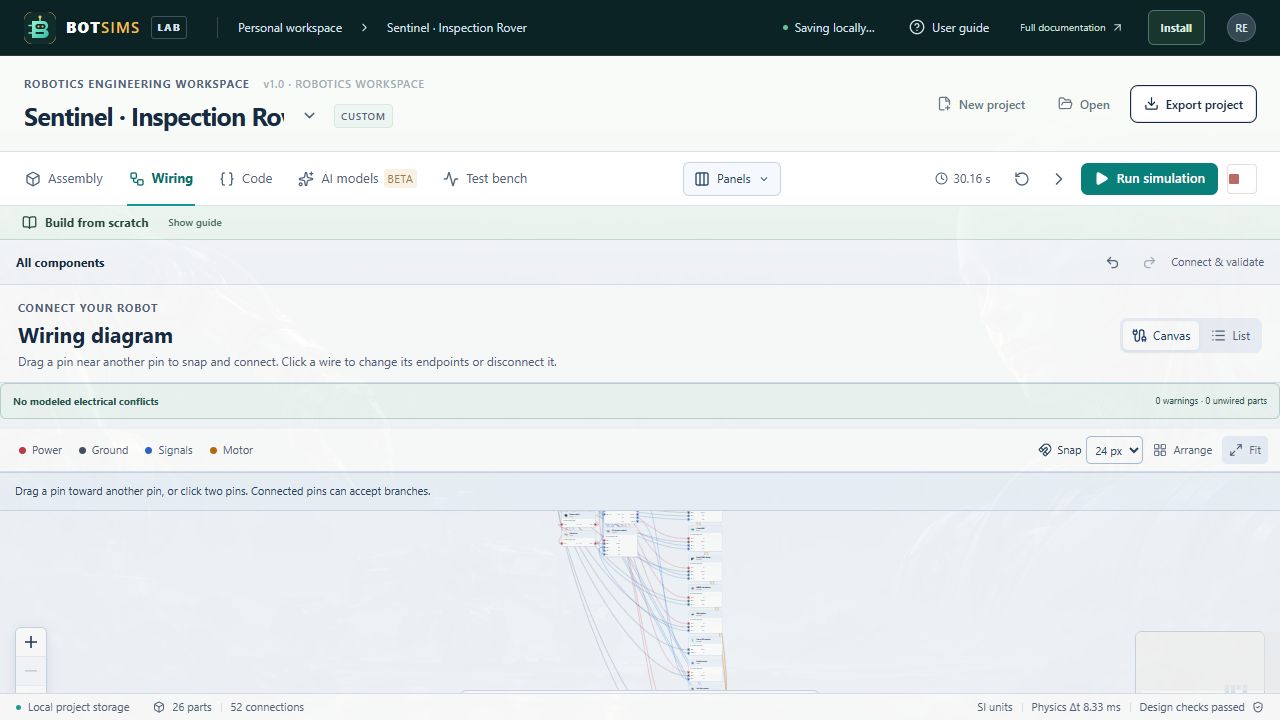
Every project component can be removed, including parts supplied by a template. Use the trash button on its Assembly row, select it and choose Remove component in the inspector, or use the selected-part delete control in the viewport toolbar.
With a component selected and focus outside text inputs, Delete or Backspace removes it. When typing in the code editor, search, or an input field, these keys edit text instead. Close a dialog before using the workspace deletion shortcut.
Removing a part also removes logical wires that reference its pins. Parts attached to the removed parent are kept with their root-relative poses and detached ownership. Other components are not automatically deleted.
- Use Undo to recover the previous project state, including a removed part and its connections.
- Use Redo to reapply an undone change. A new edit clears the redo branch.
- To remove only a logical connection, open Wiring and choose the trash button for that connection.
- To remove a visible cable-layout instance, delete that instance. It is separate from the logical connection list.