
Place, rotate, and inspect components
Use the 3D viewport and root-relative transforms with consistent units.
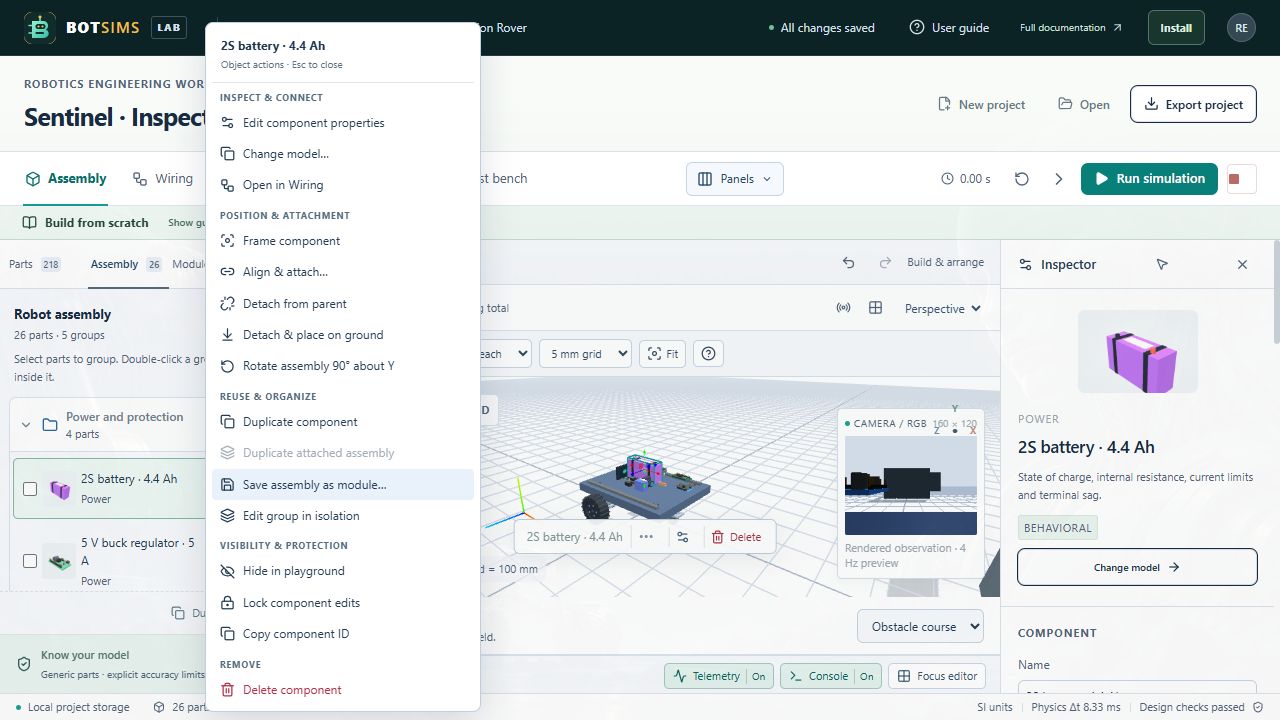
Parts can now be dragged directly: hold Shift before dragging to move vertically, and Alt to bypass smart mounting/grid. See Drag, snap, and attach compatible parts for the full workflow. Use the question-mark button beside Fit for quick in-app instructions.
3D navigation: hold the left mouse button and drag to orbit; hold the middle mouse button (wheel) and drag to pan; scroll to zoom. Right-click a component opens its actions. Middle clicks on the canvas suppress browser autoscroll.
- Choose Add on a component card. The new part is selected and staged on a clear ground footprint. It begins as a loose physical body, separate from the mounted robot.
- Select the part in the viewport or Assembly list. Drag the part or a translation-axis handle to move it. Choose Grid off or a 1, 5 or 10 mm grid in the placement toolbar; hold Alt to bypass the grid and mounting snap.
- For precise placement, enter Position X, Y, and Z in the inspector. Position fields are metres: 0.10 m is 100 mm.
- Set Rotation X, Y, and Z in the inspector. The UI uses degrees; exported rotations use radians.
- Orbit by dragging the background, zoom with the wheel, and use the perspective/top/front views to check alignment. Mouse/touch behavior follows the viewport orbit controls.
- Use the sensor-field and wireframe controls to inspect orientation and shape. Select in the Assembly list if a small component is difficult to click.
| Coordinate or quantity | Meaning |
|---|---|
| +X | Forward along the robot. |
| +Y | Up. |
| +Z | Right. |
| Position | Relative to the robot root, in metres. |
| Stored rotation | XYZ Euler angles in radians; inspector fields display degrees. |
| Dimensions | The inspector summarizes nominal dimensions in millimetres. |
| Mass | Model values use kilograms; summary cards may display grams. |
All part poses are stored relative to the robot root. Editing a mounted parent moves its descendants with the same rigid transform, including their orientations. This does not solve CAD assembly constraints, linkage closure or joint forces.