
Group components and edit a subsystem in isolation
Organize a larger robot into power, compute, drivetrain, perception and interaction subsystems.
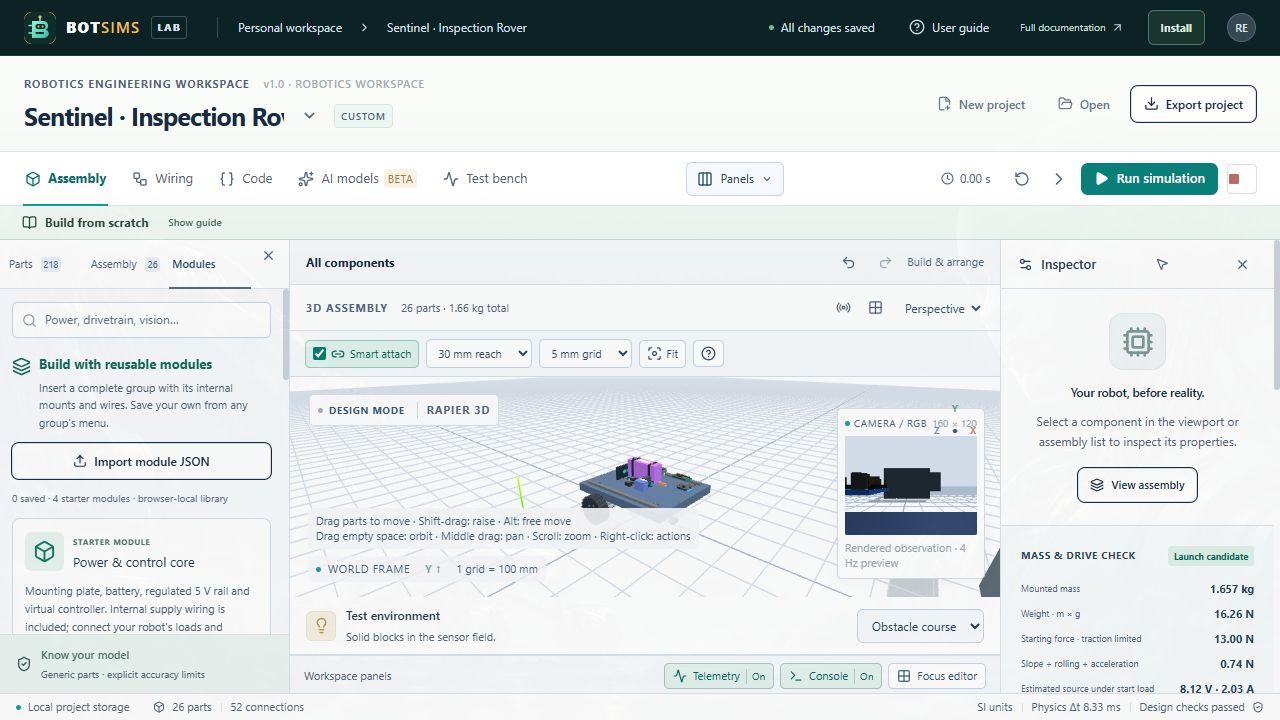
A group is a saved collection of component instances. New rover and emoji templates include named subsystem groups. Existing projects keep their original organization. A component belongs to one group at a time; groups are flat collections rather than nested physical joints.
- Open the Assembly list on the left. Use the checkboxes next to parts to mark the members of a new group.
- Choose Group selected, enter a useful name, review the member checkboxes, and choose Save group. You can also choose Group first and select members in its dialog.
- Double-click a group name, choose its Edit button, or right-click it and choose Edit group in isolation.
- The 3D viewport and assembly list now show only the group members. The breadcrumb names the active subsystem. The camera frames the visible parts automatically.
- Select a member and edit its position, rotation, name or parameters in the normal inspector. New components added while a group is open join that group.
- Choose Manage focused group or Add / remove members to rename it or change membership. Selecting a component from another group moves it into this one.
- Choose Exit group or All components to return to the complete robot. Right-click a group and choose Ungroup to dissolve the collection while keeping its parts and wires.
Double-clicking a grouped part in the 3D scene opens its group. Right-clicking a part offers Edit component properties, Edit group in isolation when applicable, and Delete component. The group name also has an Options button for users who prefer a visible control.