
Drag, snap, and attach compatible parts
Use magnetic mount previews, exact alignment, grid settings and direct manipulation.
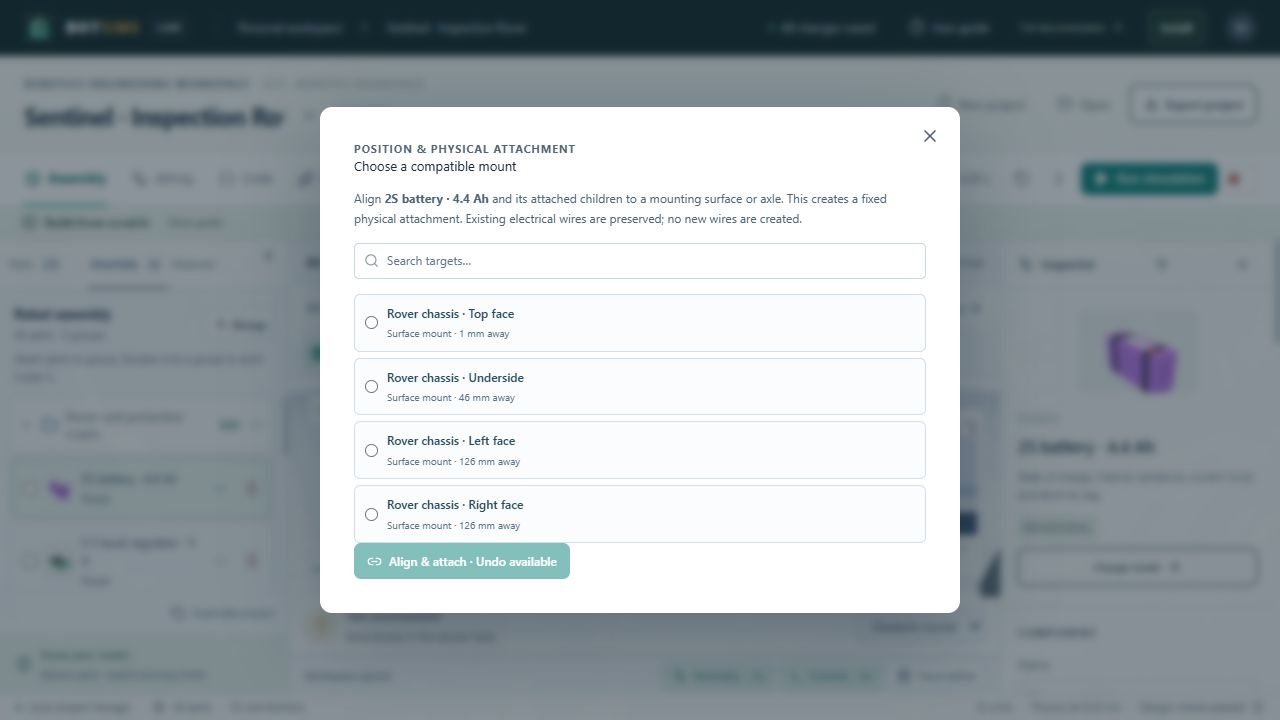
- Drag an unlocked part to move it horizontally. Hold Shift before starting the drag to raise or lower it. Attached children follow. Editing clears the running/paused simulation back to its design pose.
- Keep Smart attach enabled in the assembly toolbar. Choose a snap reach of 10, 30, 60 or 100 mm, and an optional 1, 5 or 10 mm movement grid. Hold Alt to bypass both.
- A green outline and Release to attach message identify the nearby compatible target. Release to align and physically attach. Escape cancels a direct drag; one Undo restores the whole completed move.
- For precise or keyboard placement, right-click the object or use its row options → Align & attach. Search compatible targets, review the resulting pose, then apply. Existing electrical wires are preserved; use Wiring to connect power and signals.
- Use Fit for the assembly or F for a selected part. Drag empty space to orbit, middle-drag to pan and scroll to zoom. The question-mark button beside Fit explains all controls.
Generic mounting profiles support components onto structural faces, wheel/gear/pulley hubs onto shafts, arm links onto servo outputs and shafts into bearings. Known diameters must agree within 0.1 mm. Unknown diameters, keyed connector gender, bolt patterns, strength, interference clearance, tolerances, gear meshing and belt tension need separate engineering checks. Hidden, isolated-outside and cyclic targets are excluded.