
Use camera input, displays, and audio devices
Know what the simulated devices expose and how image-input failures are resolved.
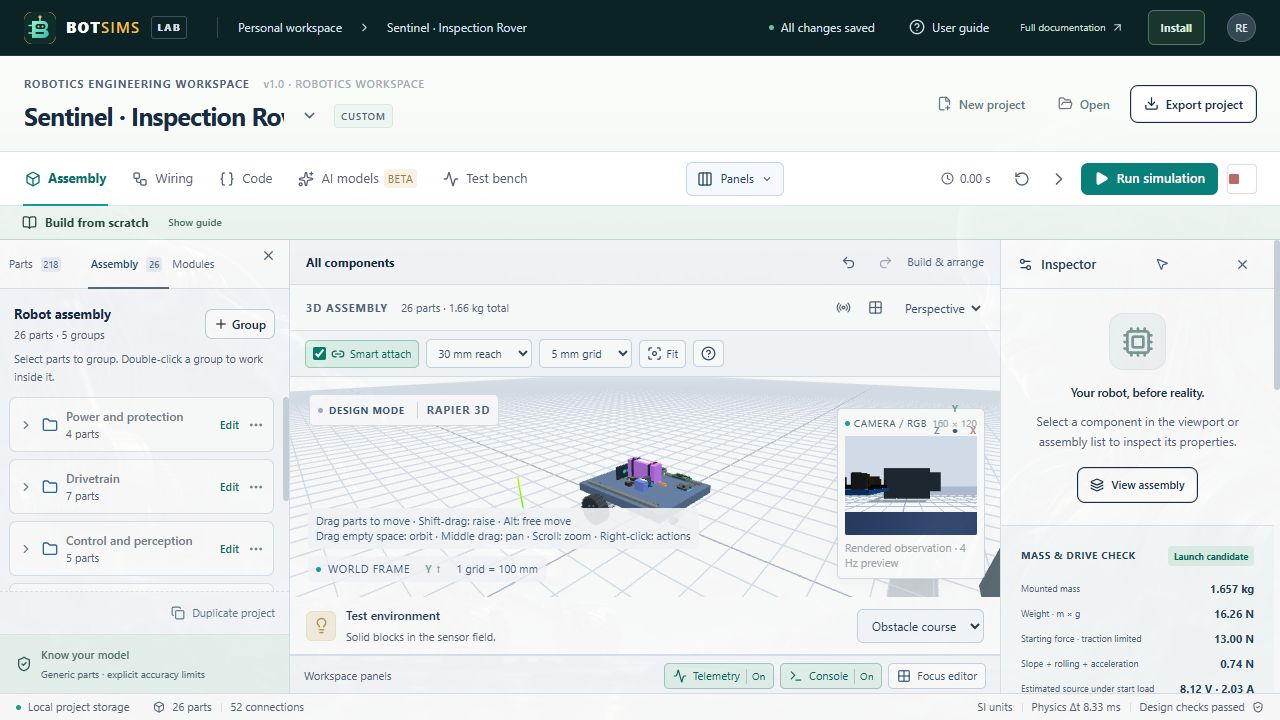
A supported camera can render a view from its configured robot pose. A visible camera mesh alone is insufficient: the device needs power, a return path, a supported DATA connection, and a functioning host/controller path. Brownout disables availability.
- Place and orient the camera, then inspect its power and signal wiring.
- Open Assembly and allow the camera preview to update after the simulation is initialized.
- Confirm that a usable preview exists before enabling Attach rendered camera image in AI models.
- Select a model that supports the relevant image format/modality, then request an action.
- If the app reports no powered camera frame, repair the wiring or turn image input off to test text/sensor-only AI.
The rendered image is a simplified synthetic observation. It is not a calibrated optical model with every lens distortion, exposure effect, lighting artifact, or sensor noise process. A provider receives the frame only when image attachment is enabled.
The display renders supported program expressions when correctly powered and connected. Microphone and speaker components provide wiring/layout and nominal load planning; live microphone capture, speech recognition, generated speech playback, and acoustic propagation are not implemented. robot.speak and AI say currently appear as text events.