
Save, reopen, import, and export projects
Keep your work across sessions and move it between browsers safely.
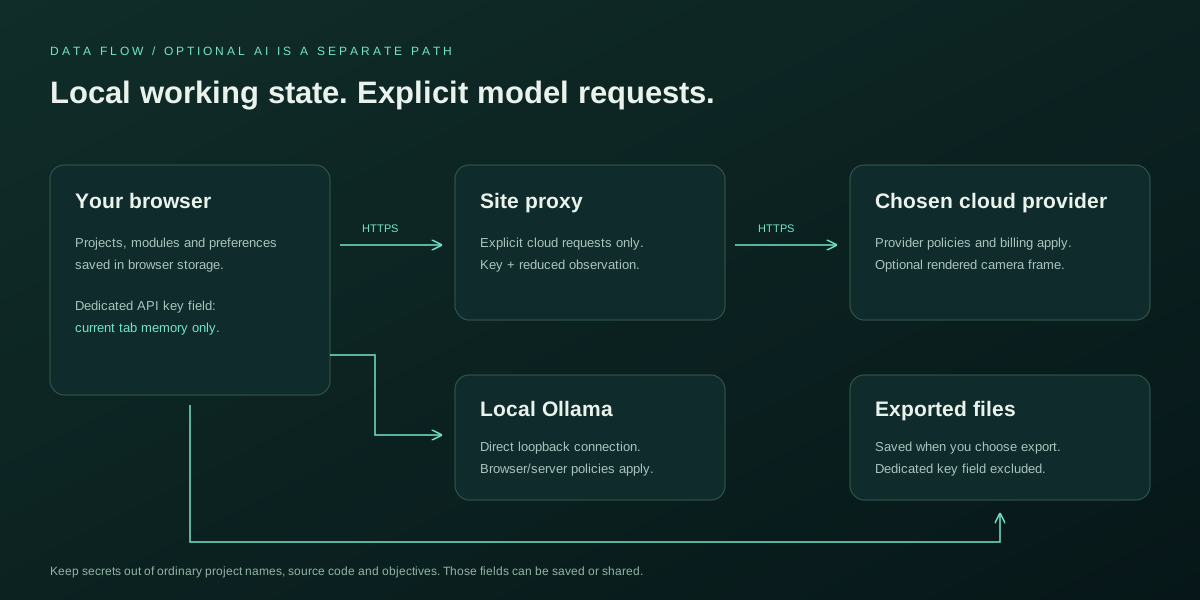
BotSims automatically saves the active project to this browser's local storage shortly after edits. The save indicator confirms storage succeeded. This is one active local-project slot, not a cloud account workspace or a permanent project history.
- Use Export in the project bar to download the editable project JSON before switching templates or starting a different design.
- Use Import to select a previously exported project. The importer validates its structure and supported definitions before replacing the active project.
- Use Duplicate project to create a new project identity and name for the active configuration. Export it to keep the copy separately.
- Export an engineering report after testing; reports include measurements, while the project export is the normal portable design file.
- Keep backups outside browser storage. Clearing site data, using another browser/origin, or private browsing can remove or hide the saved local project.
Saved projects include parts, wiring, overrides, code, scene settings, and non-secret AI configuration. They do not store the API key, an active Worker, the running physics state, or permanent undo history. A reload recreates the design rather than resuming the exact physics instant.