
Find your way around the workspace
Know which panel to use for assembly, wiring, code, AI, and verification.
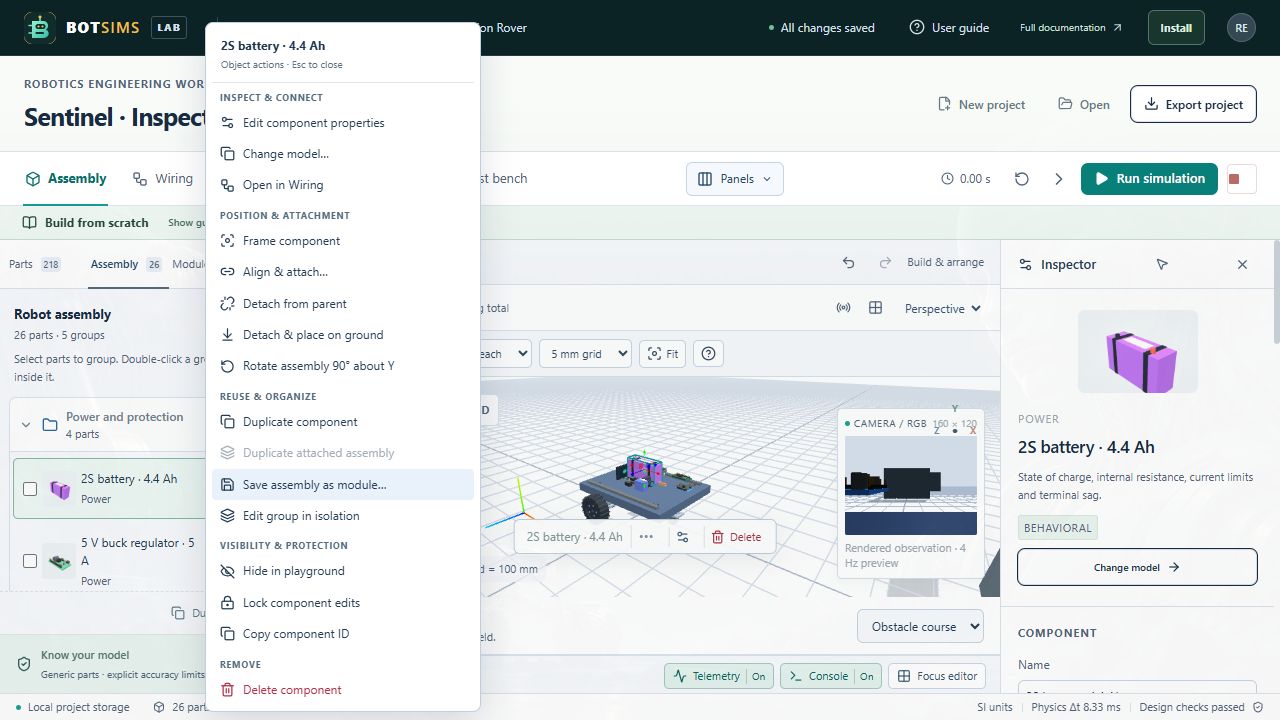
| Area | Use it for |
|---|---|
| Project bar | Choose a template, import a project, export a portable JSON backup, and see save status. |
| Component library | Search parts, browse categories, inspect card details, filter by fidelity, and add components. |
| Assembly list | Find every project instance, select a hidden or overlapping part, and remove an instance. |
| Assembly tab | Orbit the 3D design, change views, translate selected parts, show sensor guides, and inspect geometry. |
| Wiring tab | Connect specific named pins, review logical connections, and remove individual connections. |
| Code tab | Edit the synchronous JavaScript controller and inspect output or runtime errors. |
| AI models tab | Configure a supported connector, request an action, review it, and explicitly apply it. |
| Test bench tab | Read design diagnostics, run reference scenario checks, and export an engineering report. |
| Inspector | Edit the selected part's name, transform, mass, and exposed model values. Clear selection to see project/environment settings. |
| Simulation toolbar | Reset, Single step, Run/Pause, and Emergency stop. |
| Telemetry and console | Read the latest measurements, recent charts, faults, logs, and speaker text events. |
Start with a template whenever you want a known wiring baseline. Use an empty workbench for layout planning or deliberate step-by-step construction. Adding parts to an empty project does not automatically create power paths or a working drivetrain.